

I’m not the cleanest laptop user of all time. My sweaty palms leave imprints on the trackpad and top lid, and I frequently eat snacks before and while I tap away at the keyboard. It’s all one big mess.
I may not be the most consistently clean person, but my bad habits have also led me to pick up a couple deep cleaning tips to help you get your computer spick and span.
If you’re looking to buff out the stains and smudges, gunk and grime from your laptop and get a fresh start this season, read on to find out how to safely clean out each part of your computer. And after you get the chassis looking brand new, I’ll tell you how to keep your files in order, too.
Start with the visible gunk and work inward
If you’re doing a full deep clean, then it makes sense to start with the laptop’s chassis. Here’s how to put in some elbow grease and make your laptop look brand new.
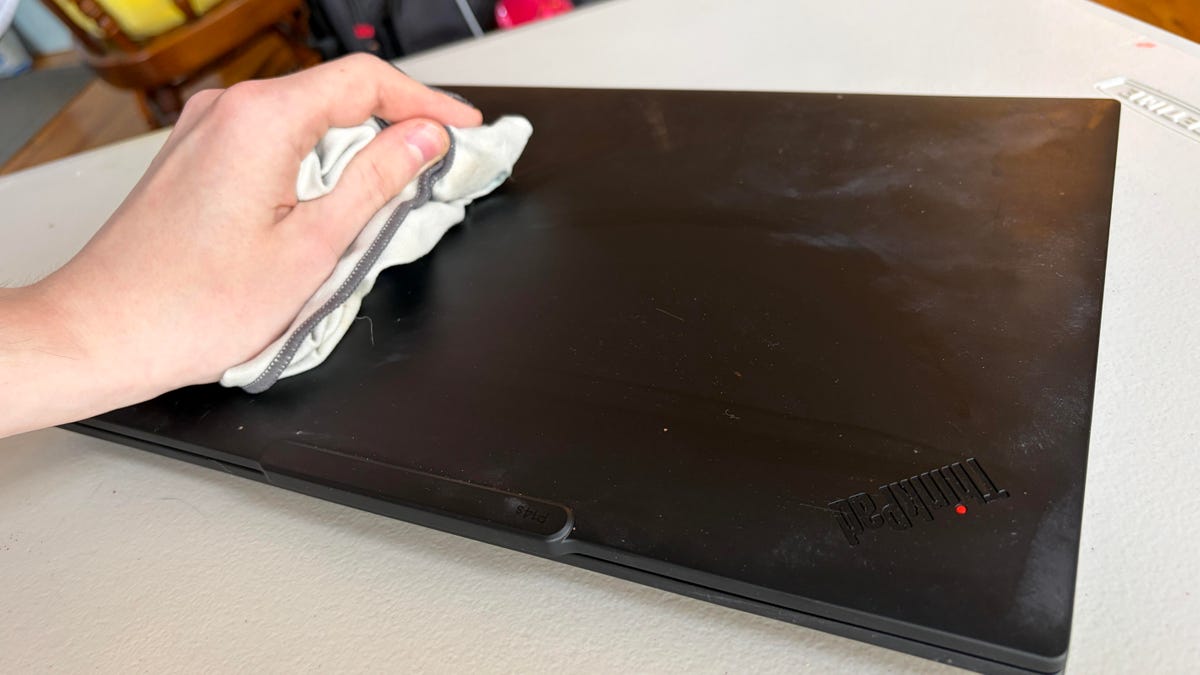
Cleaning up the top lid is the simplest start
Whether you’ve got smeared fingerprints or food grime on your laptop’s chassis, it’s the first place you’ll want to start your deep clean. Thankfully, you don’t really need any special equipment to get your computer looking good as new.
Before you start doing anything, power down your computer. Begin your cleaning by gently rubbing the top lid down with a damp cloth or paper towel and a tiny dollop of dish soap. This should remove the gunk without doing any damage to your computer — though you’ll want to avoid getting excess moisture on your device, especially around any hinges or vents.
It’s best to avoid wet wipes and chemical cleaners for this task, since you don’t want to damage the matte finish that makes your laptop look so pretty. I use Dawn dish soap, and it works just fine. Once the chassis is clean and dry, you can move on to the next step.
Cleaning up the screen (and maybe the integrated webcam)
If you’ve got smudges, fingerprints or other miscellaneous marks on your screen, you’ll need something finer than a paper towel to take care of the issue. Using a slightly-damp microfiber cloth, you can buff out any dirty spots on the screen and clear up your integrated webcam.
If you don’t have a microfiber cloth, a glasses cleaning kit works wonders in a pinch — and if there’s any particularly stubborn stain on the screen, you’ll want to invest in a 70% isopropyl alcohol cleaning solution to get it removed.
This is a pretty simple step, and so long as you don’t use any rough or bristly towel that could damage your laptop’s screen, all the smudges should be removed very quickly.
Cleaning up the keyboard
You don’t want to damage your keycaps when you’re cleaning out the keyboard, so you may be reluctant to get down in there with your cleaning implements. That’s understandable. Instead of damaging your device, focus on what you can easily clean out with a trusty can of compressed air.
Tilt your laptop at a forward angle with the keyboard pointing down and use the can of compressed air an inch or two away from the computer. Move the can left and right across the length of the keyboard as necessary. If a particularly big crumb or visible dust is under a key, focus the blast of compressed air on it as long as needed to dislodge it from the keyboard.
Once you’re done, remove the debris and detritus with a soft brush. You don’t have to buy a specialized tool — anything with fine bristles (even a toothbrush) will do the trick. Take care that you’re not lodging any of the grime back into the keyboard, or else you’ll have to start over again.
Once you’ve blown out the keyboard, you can wipe the keyboard and trackpad down with a slightly damp cloth to remove any sticky gunk. Be careful not to oversaturate the cloth with water — spilling liquid into these mechanical components could cause trouble, even though you want a little bit of moisture to lift the
Charger check-up: Giving the cable a quick clean
I couldn’t tell you how it happened, but I ended up with some nasty sticky splotches gunking up my charger cable. You should take a look at your charger cable (and block) to make sure it’s clean — if it’s not, you’ll be happy to hear this is the simplest part of the entire cleaning process.
You don’t need any specialized microfiber cloth to scrub down this component. Just grab a damp paper towel or a wet wipe and get to work, scrubbing away the grime until the charger is clean.
As a safety precaution, avoid getting any moisture inside of the charging elements and keep the damp cloth away from the metal pins that slot into the electrical socket. And it probably goes without saying, but don’t attempt to use the charger until everything is dried off.
Tidy up your files before you call it a day
Now that your hardware is all cleaned up, it’s time for some software spring cleaning. You’ve probably got unnecessary files and bloatware clogging up your hard drive and slowing down your computer. By carefully cleaning up your downloads, you might even be able to slightly speed up your laptop.
Check for any software updates: Your OS, drivers and more
Have you been sitting around staring at that urgent yellow notification pleading with you to update your computer? We’ve all been there, and it’s especially hard to justify a restart when you’re working on something important. Even still, a spring cleaning deep clean is the perfect excuse to make sure you’re running the latest versions of the software on your computer.
The first order of business is to make sure your operating system is up to date. If you’re still clinging to Windows 10, I feel for you, but at this point it probably doesn’t make sense to shell out for the extended security updates program. It’s time to update to Windows 11, for better or for worse.
If your laptop isn’t able to run Windows 11 (or you’re dead set on avoiding that OS no matter what), there are alternative operating systems you can set up, like Linux or ChromeOS Flex.
Other than making sure you’re running the latest and most secure OS, you might be able to squeeze some extra speed and performance out of your laptop by making sure all of your drivers are up to date.
Opening Device Manager should give you the option to automatically update drivers if new versions are available, though you may need to poke around third-party programs like the Nvidia or AMD app to keep your graphics drivers updated if your laptop has a discrete GPU.
Out with the old — clean up files you don’t need anymore
Having files scattered around your desktop and download folder isn’t just a headache for you. Filling up your hard drive with unnecessary bloat could be slowing down your computer.
Deleting temporary downloads and unwanted files is a good way to start cleaning up your drives, and if you’re anything like me, begin clearing up a very cluttered laptop desktop. Performing the cleanup yourself instead of offloading it to a cleanup program lets you control what stays, goes or ends up on an external drive to make space on your computer.
Once you’re done hacking and slashing away at the bloat, make sure to empty your recycling bin and delete the files permanently to really lighten the load on your drives.
If you’re running a version of Microsoft Windows, ensuring Storage Sense is enabled will save you time cleaning up files in the future. Storage Sense can be enabled in the advanced system storage settings — the feature automatically cleans up temporary files and empties the recycling bin by itself when your hard drive is nearing its capacity. It’s a useful quality-of-life upgrade, but you’ll want to make sure nothing important winds up in the virtual trash (and maybe back it up on OneDrive to be safe).
Organize what’s left to make your life easier
Your hard drive may have loads of extra space and your computer might be running a bit speedier, but that doesn’t mean you’re done quite yet. There’s still another step that’ll help you tidy things up visually and make your next hard drive deep clean a little bit easier.
Organize the files you have left into clearly marked folders that are easily accessible on your desktop. To create a new folder, open the File Explorer and click the Desktop option in the menu on the left-hand side of the window. Then click the New button on the top left and select Folder from the drop down flyout.
The new folder will automatically appear on your desktop, where you can label it and drop files into it as you please. Just make sure not to make too many folders, or you’ll be back to step one organizing your downloads all over again.
Read the full article here