

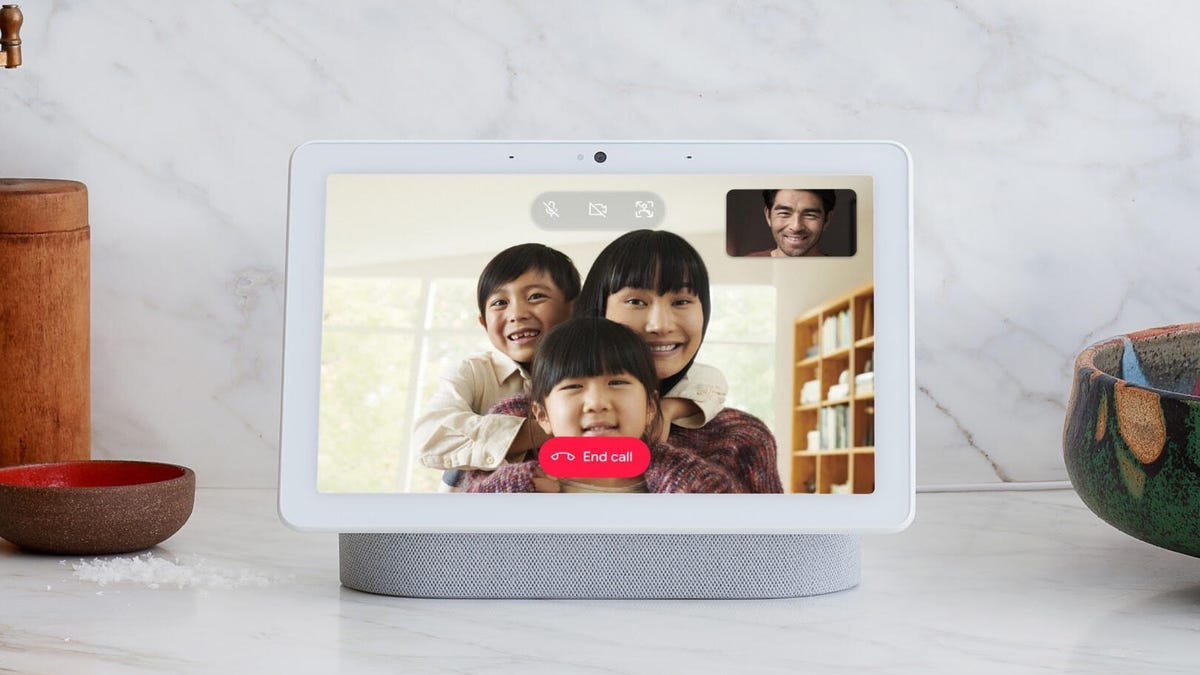
It was a huge year for smart home products from Google Nest and the Google Home app. Gemini for Home is busy replacing Google Assistant, all-new cameras were released with advanced AI tricks and I’m waiting for spring when a new Google smart display should ship. Exciting times — but you may feel flummoxed when it comes to exploring all the latest features.
During my years with Google devices, I’ve come up with several must-have settings tweaks and implementations that turn Nest devices from curiosities to home management powerhouses. Here’s what you should try.
Don’t miss any of our unbiased tech content and lab-based reviews. Add CNET as a preferred Google source.
1. Use your Google Calendar
Let’s start with something simple. When you set up a device like the Nest Mini 2 or Nest Hub Max, it connects to all your Google-related apps through your Google Account. That means it’s automatically connected to Google Calendar, which is more useful than it may seem at first glance.
With Google’s voice assistant, you can check your calendar at any time or say a command like, “Hey Google, set an event to call the dentist for tomorrow at 8 a.m.,” and Google will automatically add it. With a display, you can review the event Google has created for mistakes and modify any part of it before saving, which is helpful since it takes a few attempts to learn how Google interprets these events. And if things change, you can delete or change the time of an event, too.
These Calendar tools become even better if you have Gemini for Home (more on that below), which is more conversational and lets you adjust event commands in the middle of giving them, all while you’re making coffee or typing an email.
2. Create Google Keep notes to reference
Everyone with a Google Home speaker or display should try this trick. It’s very easy, simply head into your Google Keep and create a new note. Name it something you would use regularly, such as a To-Do List or Shopping List. Make sure it’s in the format of checkboxes, which allows Google to understand that the list is itemized.
Now, whenever a new task pops into your head, you can say, “Hey Google, in my To-Do List, add an item to buy wrapping paper” or whatever else occurs to you. Google will update on the fly, and you can access your Google Keep notes from any device for future reference.
3. Enable Gemini for deeper security and conversations
Google Assistant had its woes, especially when it came to accuracy around the home. Now, Gemini for Home is rolling out to users to replace the old Assistant, so keep your Google Home devices updated to watch for it. The Google Home app will typically prompt you to turn on any Gemini for Home features, although you may need to explore settings to find the new options.
Without paying any subscription fee, you still get access to basic Gemini for Home commands and conversations. I find it better than the old version, not as accurate as Alexa Plus so far, but definitely worth getting. The conversational abilities, in particular, are useful for setting notes or asking questions, because you can continue adding or modifying your information without having to say “Hey Google” every time.
If you don’t mind paying, you can add a Google Home Premium Advanced subscription for $20 a month, which unlocks all of Gemini for Home’s capabilities. That lets me do things like ask Google if it’s seen a UPS truck arrive on my security cameras, or get a daily summary of everything Gemini noticed happening at my front door, from walking dogs to certain cars stopping by. It’s the new era of home security, and it saves a lot of time.
4. Try the Good Morning routine
With the latest voice assistant abilities turned on, try saying, “Hey Google, what’s my day look like?” or “Hey Google, good morning.” This enables the Good Morning routine setting.
You can tweak Good Morning in Routines on the app, but by default, it provides information like the time, weather, traffic updates, a joke — plus, any tasks you have scheduled for today, and a news summary video.
This is an excellent way to get started with home routines because the hard work is already done. You can add or remove Actions and Media to customize it, letting the routine turn on lights, play certain wake-up songs, turn up the thermostat and more. Google provides suggestions on what to add if you’re unsure where to start.
Once you’ve customized your Good Morning routine, you’re ready to create other routines to help manage your day. What about a Good Night version, or an I’m Home From Work routine? Almost everyone can create a Google routine that works well for them.
5. Take a minute and add all compatible home devices to Google
Google Home’s app can control nearly any compatible smart device and provide those devices as options for creating routines. But they need to be active and added first. That’s a roadblock, even for active smart home users.
We may forget to add devices or have missed that certain devices can be added. Or some devices may need to be reconnected, especially with all the recent changes to the Google Home app.
That’s why I suggest sitting down with the Google Home app and seeing what it can connect to, making sure all the important smart tech you’re using is added, if available. That includes speakers, locks, TVs, lights, smart plugs and security cameras (I could go on — it’s a long list).
Set up what you feel comfortable adding to the Google Home app. Then, you can go to the Automations section or discuss creating a routine with Gemini, and Google will suggest ideas based on your connections, helping you put together useful commands for situations like movie nights, special dinners, game days, and more.
6. Turn on Voice Match
Have you had trouble with Google Assistant understanding your voice in the past? That was one of the most common complaints, especially for people with higher voices. It’s a good idea to enable Voice Match for your Google Home speakers if you haven’t already.
Voice Match helps Google learn your distinct voice and how it sounds, so it responds to it more readily. You can also add the voice of other people who regularly use the same devices, or retrain Google with a new recording to improve results. It’s a top troubleshooting step to make all the other steps work more smoothly.
For more information, see my lists of the best smart home devices overall, the very best Alexa commands and where Nest falls in the best security cameras guide.
Read the full article here