

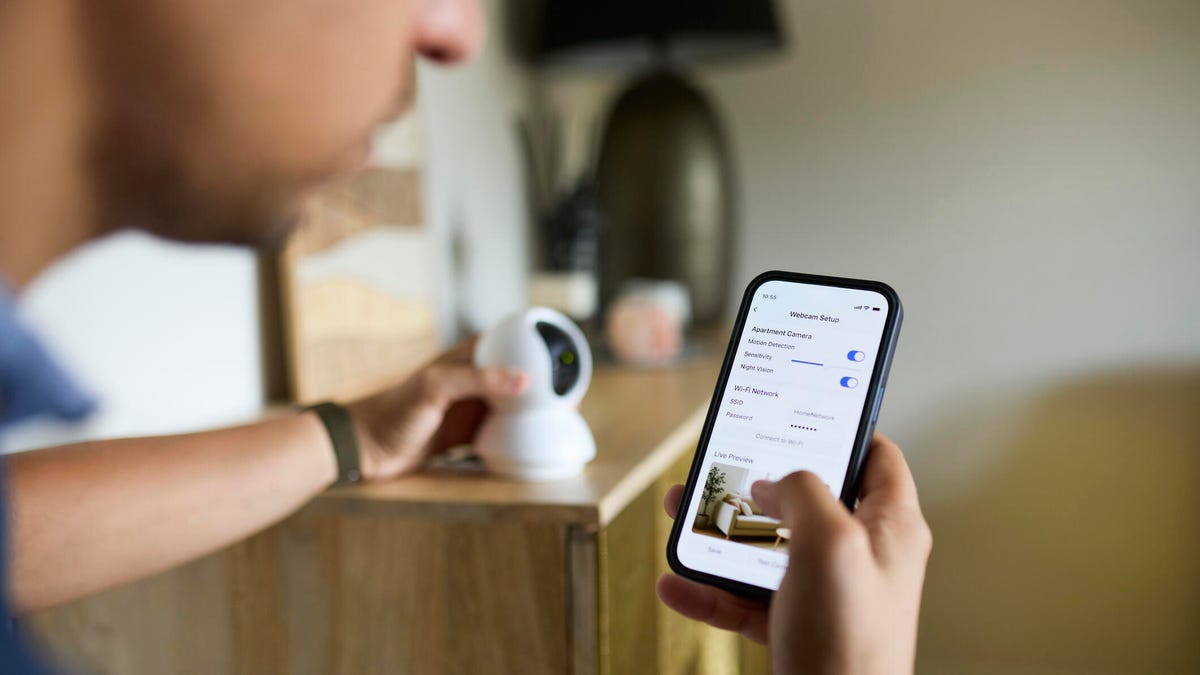
Privacy and surveillance are common concerns these days. I’ve also gotten more questions about how companies use (or misuse) security video, especially if it’s kept in the cloud. And everyone gets nervous thinking about others peering at them through security cam live views at any time.
One of the best answers is enabling privacy zones on your cameras, but far too few people know this option exists. Privacy zones let you block off custom areas of the camera to help address a plethora of issues. Here’s everyone you need to know about enabling them.
Read more: The Security Companies With the Best Data Protection Records
What is a privacy zone?
A privacy zone is an area you draw across a security camera’s field of view to mark that spot as off-limits, meaning the camera won’t detect motion there. Within those zones, the camera won’t record or send alerts triggered by movement.
That’s very helpful in common real-life situations. For example, there may be a deck or walkway at your home where your loved ones come and go, and you don’t want your security camera constantly eavesdropping on them.
You may also want to block off a nearby sidewalk so you don’t get constant alerts about people jogging past in the morning. Privacy zones may even help you avoid problems with neighbors, since you can block off sections of other people’s yards or windows the camera may accidentally catch.
Activity and motion zones are very similar, but work in reverse: They highlight specific areas for the camera to monitor, while disregarding other areas where you may want privacy.
If you have a security cam that’s only a few years old, it almost certainly includes privacy zones like these. Here’s how to set them up.
Step 1: Set up your security camera
First things first. If you have a new camera, take time to connect it, mount it, download the app and create an account. Make sure it’s successfully linked to your Wi-Fi and that all app and firmware updates are complete.
It’s also smart to tackle more basic settings first, such as motion sensitivity and what objects the camera detects (people, cars, animals, etc.). That’ll help you become familiar with app’s navigation, and those settings will come in handy when you’re ready to implement privacy zones.
Step 2: Find the privacy zone settings in your app
Search for your privacy zone settings. These are typically found in sections such as Motion or Privacy, often as a subsection within the main settings menu for your camera. If you haven’t found them yet, look for a cog icon or hamburger menu, where more advanced features are usually hidden.
Remember, not all apps call them privacy zones. Yours may use terms such as activity zones or motion zones instead.
Step 3: Draw and mark your zones over unnecessary zones
When you reach the zone section, the app should display either a live camera view or a still image from that view. You can use your touchscreen to set one or more privacy zones, typically using an adjustable grid.
In Blink’s example, you can see the starting grid, which you can drag to create privacy zones that ignore motion in areas such as a window or deck.
Eufy, on the other hand, uses the term activity zones. You can select areas in a yard to monitor, which automatically ignore spots with frequent motion. That way, you’ll only get alerts when someone actually walks into the yard, rather than notifications about routine activity around the home.
Important note: I’m focusing on outdoor activity for this guide, but most privacy zones will also work for indoor cameras, which can be very useful if you only want to monitor a particular entryway or hallway.
Step 4: Save your changes and experiment
Let the app save your work and check the results. Take a stroll through the area you marked with a privacy zone, then review your notifications and event history in the camera app. Nothing should be triggered. Eufy even includes a test feature for this very purpose.
If the camera is still detecting motion, you may need to expand the privacy zone or adjust the camera’s angle and try again until you get the non-result you’re looking for.
Step 5: Adjust your motion detection and object recognition settings
Finally, review your motion detection settings, such as motion sensitivity and what object or AI detection features you have available. Tweaking these features can also help your camera become more accurate or stop it from being triggered too easily, enhancing the effects of your privacy zones.
Some apps, such as Google Home with the Nest Doorbell, will give you options in the privacy zone section to choose what the camera will recognize. For example, you could create a zone around the front door and tell the app to detect packages in that area — not people or pets — limiting notifications to deliveries while still sending alerts for people detected nearby.
To cap it all off, take a look at my guides on where to never place security cameras around your home, the best indoor security cameras and the best cheap security systems if you want notifications but prefer not to have cameras recording people.
Read the full article here