

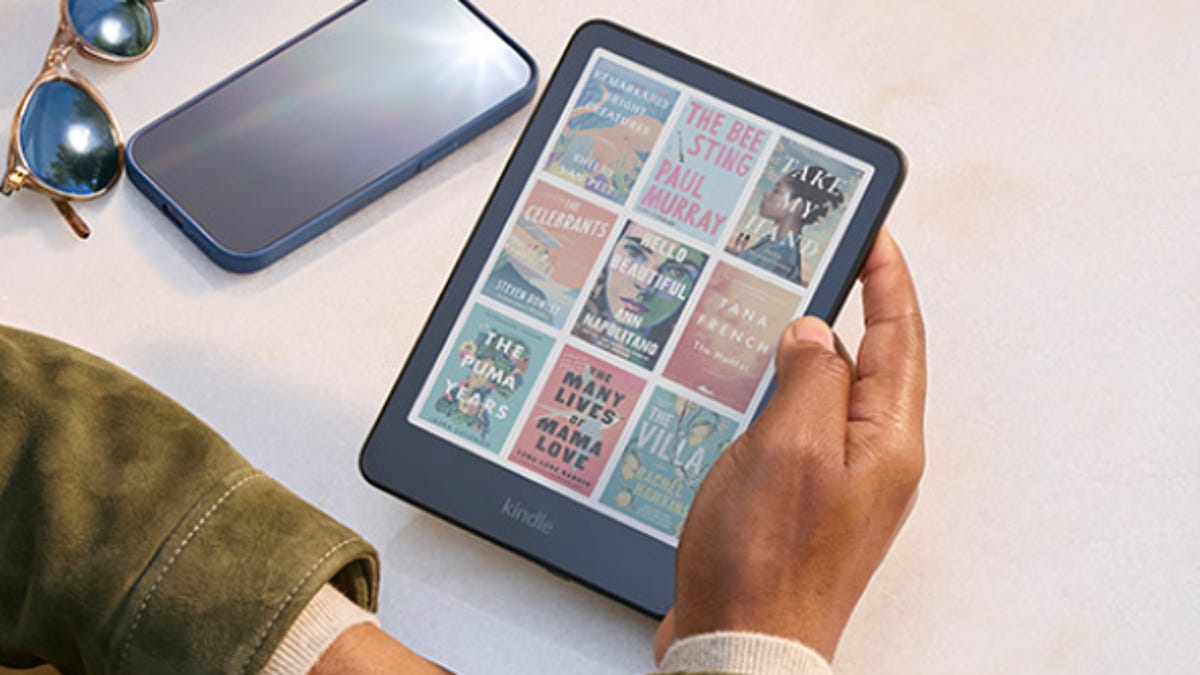
Reading is hands-down my favorite hobby. When I’m really in the groove, I can fly through a book or two in a week. While I always prefer holding a novel in my hands and turning the pages and running my fingers over the spine, it’s not always feasible to carry around a clunky hardback or two. So when I’m on the go at the gym, airport or beyond, I opt for my Kindle.
As much as I love tactile books, even I can’t deny that Kindles do so much more, and it’s been a blast discovering all of the hidden talents my e-reader has. For instance, one of my favorite books is Pride and Prejudice, and considering I’ve read it once a year every year for the last almost 10 years, I’ve got the scenes close to memorized. So when I was trying to brush up on my Spanish earlier this year, I thought reading the classic translated would be helpful. Thankfully, my Kindle easily translated the text with the Dictionary tool.
That got me thinking: What else can my Kindle do?
Over time, I’ve realized my e-reader can do more than just hold my favorite books. I found my device is packed with handy shortcuts and lesser-known features that can help me read smarter, share easier and squeeze more out of my trusty device. Here are 10 nifty ways to unlock your Kindle’s full potential.
Read also: Confused by Classic Novels? This AI Tool Helps You Understand Older Books While You Read Them
1. Snap a screenshot
Need to save a page for later? On modern Kindle e-readers, including the latest Paperwhite and Oasis, you can tap two opposite corners of the screen at the same time to take a screenshot. For the Kindle Touch, hold down the Home button and tap the screen. On older Kindles with keyboards, press Alt+Shift+G. For Kindle Scribe, you’ll need to long press the power button and tap Screenshot in the menu.
From there, plug your Kindle into a computer to find and transfer your saved screenshots.
2. Borrow books from your public library
You can skip the trip and borrow e-books for free through your local library’s website.
Log in, browse the digital collection, check out a title, then choose Kindle as your reading option. Sign in to Amazon, send the book to your device and download it over Wi-Fi. Public libraries are an underrated Kindle power move.
3. Share an account with a family member
Amazon’s Family Library lets you link two Amazon accounts and share purchased books. On your Kindle, go to Menu > Settings > Registration > Household & Family Library. Add an adult, then follow the prompts.
Heads up that linked accounts can also use each other’s payment methods, so share responsibly. Also, be aware both accounts must be in the same country region for full functionality.
4. Create a kid-friendly library
Want to share books with your kids without setting up a separate account? Kindle lets you create child profiles under the same Household & Family Library. Tap Menu > Settings > Registration > Household > Add Child. From there, you can pick which books they can access and keep the grown-up thrillers for yourself.
5. Lend a single book to a friend
Some Kindle books can be lent out for 14 days, no account linking required. Visit Amazon’s Manage Your Content and Devices, click the ellipsis next to a title and select “Loan this title.”
Just remember that not all books are loanable. In fact, few publishers actually allow lending anymore, especially for new releases and big-name titles, so check before making any promises to your loved ones about loaning your latest read. However, if you can find a loanable title, this feature is worth the money saved. Plus, it’s exciting to be able to read the same titles as your friends for a later book discussion.
6. Send docs straight to your Kindle
With Amazon’s Personal Documents Service, you can email files to your unique Send-to-Kindle address and they’ll appear on your device. Or you can opt to use Amazon’s newer Send to Kindle browser extension for direct web article sending.
This feature is ideal for reading PDFs, notes or work files on the go.
7. Auto-convert docs for easier reading
Most files and documents aren’t Kindle-optimized by default. To fix this, you can write “convert” in the email subject line when you send a message to your Kindle address. Amazon will then automatically convert it to a Kindle-friendly format so text fits nicely on the screen.
8. Listen while you multitask
This feature is still technically available, but only on older models like Keyboard and some older Fire tablets, which came with it built in. While modern Kindle e-readers, such as Paperwhite or Oasis, don’t have native Text-to-Speech, Fire tablets and Alexa devices can still read Kindle books aloud.
This feature is ideal for multitaskers who like to do laundry, cook or clean while reading. It’s no substitute for an audiobook narrator, but can be handy in a pinch.
9. Highlight and save favorite quotes
Have you ever read a passage or quote that you just can’t get out of your head? Or you’ve found a nugget of knowledge that sticks out and you want to remember it for later? The highlight tool will be your best bet.
It’s simple. Just press and hold a word on your e-reader screen, drag to select the passage, then tap Highlight. Highlights sync across devices and are easy to find later if you want to revisit a quote or share it with friends.
10. Switch dictionaries on the fly
Your Kindle allows you to customize your default dictionary, so you can read in Spanish, French, Italian and many other languages. To do so, toggle to Settings > Device Options > Language & Dictionaries and pick your preferred language or download new ones.
As I mentioned earlier, this is ideal for anyone looking to learn or brush up on another language.
Read the full article here