
Close Menu
Modern Life Today
  • Tech
  • Smart Home
  • Energy
  • Home Security
  • Kitchen & Household
  • Outdoor
  • Home Internet
  • More Articles
Trending Now

Mustard Made Storage Lockers Are on a Rare Sale Through May 31

May 22, 2026

Memorial Day Just Made Ring Security Deals Way Harder to Ignore

May 22, 2026

Review: ReMarkable Paper Pure Tablet

May 22, 2026
Facebook X (Twitter) Instagram
Modern Life Today
  • Tech
  • Smart Home
  • Energy
  • Home Security
  • Kitchen & Household
  • Outdoor
  • Home Internet
  • More Articles
Subscribe
Modern Life Today
Home»Tech»Set Up Your Phone’s Always-On Display So You’re Unlocking It Less Often
Tech

Set Up Your Phone’s Always-On Display So You’re Unlocking It Less Often

Press RoomBy Press RoomMay 22, 2026No Comments3 Mins Read
Share Facebook Twitter Pinterest Copy Link LinkedIn Tumblr Email

How many times do you think you check your phone a day?

The number is probably much higher than you’d guess. Phones are always within easy reach, offering instant access to the world, social media, and messages from friends and family. Even if you’re not being pinged with notifications, the temptation to scroll through an app or two is always there.

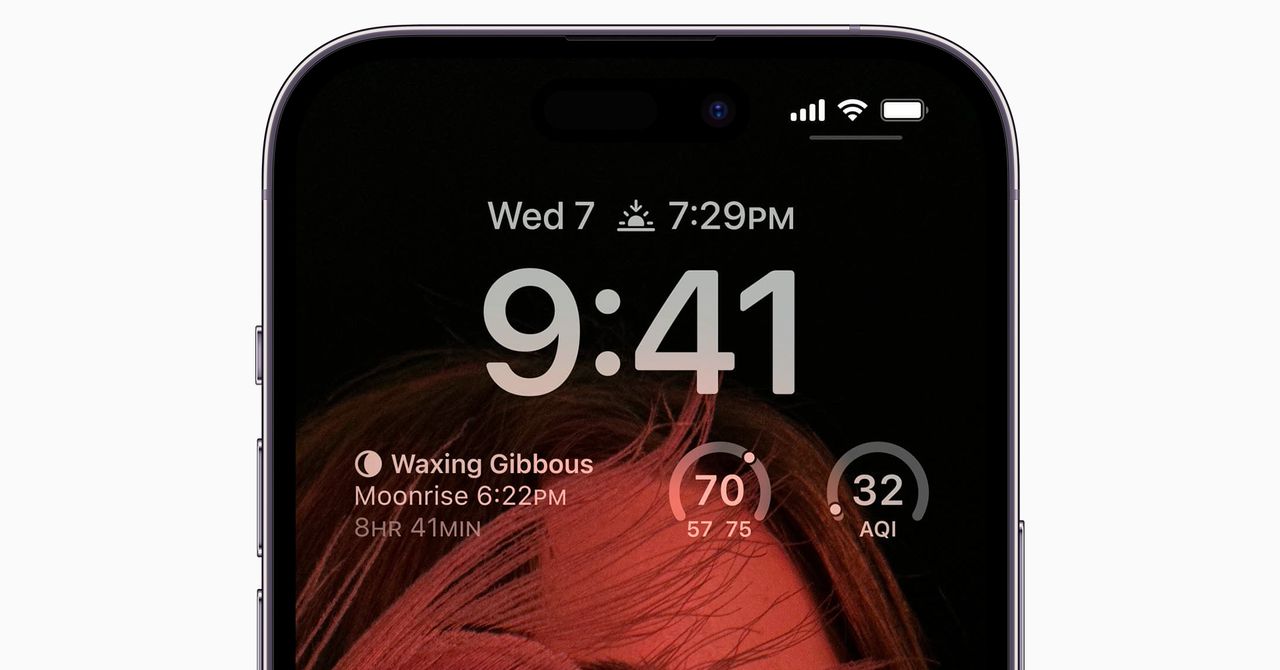
There are different ways to tackle this, from muting notifications to keeping some space between you and your device. But one easy way to be sure you check your phone less often is to do more with the lock screen on your handset.

You can populate the lock screen with a variety of alerts and updates that help you see what’s happening with just a brief glance. You won’t need to unlock your phone again and again, and you won’t be drawn into checking multiple apps each time you pick it up. Here’s what you can do on the major phone models.

Google Pixel Phones

Most Android phones now offer an always-on display feature, including recent Google Pixel models. To customize what appears on the lock screen, head to Settings, then choose Display and touch, and you’ll find an Always-on display option: Tap this to find a toggle switch to enable or disable the feature.

Also on the Display and touch menu, you can tap Lock screen to configure what shows up on the display when your phone is locked. The main option to be aware of here is Notifications on lock screen: Tap this to choose how notifications appear onscreen (in full or as snippets) and to determine which kinds of alerts show up.

Make sure you can see notifications on the lock screen.

Courtesy of David Nield

You can for example hide “sensitive” info from the lock screen, in case someone else glances at your phone—this essentially just means notifications from messaging apps, which might include personal stuff that you want to make sure isn’t available to other people. (Remember, with the always-on display setting enabled, anyone around you can get a look at your lock screen).

The other option you may want to enable on the Lock screen menu is Widgets on lock screen. This lets you set up widgets like a camera shortcut and a weather forecast to be one swipe away on the lock screen—again saving you the trouble of having to unlock your phone and dive into specific apps.

Samsung Galaxy Phones

On a Samsung Galaxy phone, you can get to the relevant options by opening the main Settings screen, then choosing Lock screen and AOD (always-on display). First of all make sure the Always On Display toggle switch is turned on, then tap Now bar. This lock screen widget displays information like sports scores and fitness stats.

To control the notifications you see here, you need to go back to the Settings page, then choose Notifications > Lock screen. Enable Show notifications, then choose the style of alerts you want: Cards is the best one to pick, if you want to get as much information on the lock screen as possible.

Read the full article here

Share. Facebook Twitter Pinterest LinkedIn Tumblr Email

Related Articles

Mustard Made Storage Lockers Are on a Rare Sale Through May 31

May 22, 2026

Review: ReMarkable Paper Pure Tablet

May 22, 2026

The Best Home Security System Is Modular (2026)

May 22, 2026
Add A Comment
Leave A Reply Cancel Reply

Demo
Top Articles

Garmin Forerunner 70 and Forerunner 170 Add New Training Tools and Better Screen

May 12, 2026

LG’s New Ultralight Gram Laptops Just Dropped (With Special Service Plan Pricing)

May 1, 2026

Viture Beast Review: I Think I Found My New Favorite Display Glasses

April 28, 2026

Apple iPhone 20: Everything We Know About the Drastic Redesign Coming in 2027

April 24, 2026
Don't Miss

The Best Home Security System Is Modular (2026)

By Press RoomMay 22, 20260

One morning, about seven years ago, I awoke to the sound of my cell phone…

How I Fixed My Webcam Lighting for Zoom Calls (2026)

May 22, 2026

Best Home Security Systems in 2026: Access Control and So Much More

May 22, 2026

Everything Announced at Google I/O 2026: Gemini, Search, Smart Glasses

May 22, 2026
About Us
About Us

Modern Life Today is your one-stop website for the latest gadget and technology news and updates, follow us now for the news that matters to you.

Facebook X (Twitter) Pinterest YouTube
Featured News

Airlines Are Already Preparing for an Oil Crisis

March 22, 2026

Review: GE Profile Smart Grind and Brew Coffee Maker

March 23, 2026

Best Laptops (2026): My Honest Advice Having Tested Hundreds

March 23, 2026
Trending Now

I Tried DoorDash’s Tasks App and Saw the Bleak Future of AI Gig Work

March 23, 2026

Grab the Amazon Kindle Colorsoft at a New Record-Low Price Before Its Spring Sale Starts

March 23, 2026

I Tested Coleman’s Snap ‘N Go, the World’s First Collapsible Hard Cooler

March 23, 2026
  • Home
  • Privacy Policy
  • Terms of use
  • For Advertisers
  • Contact
2026 © Prices.com LLC. All Rights Reserved.

Type above and press Enter to search. Press Esc to cancel.