

Courtesy of Apple
You can also manage previous backups from here and choose to sync different types of media with your computer while you’re at it.
Backing Up to MacOS Mojave 10.14 or Earlier
iTunes is not dead yet. The service is still available on older OS versions, so you can still back up everything there. Here’s how:
- Once your phone is plugged into your Mac, open iTunes and click the Device button at the top left of the iTunes window.
- Click Summary below your iPhone.
- Select Back Up Now under Backups. This creates a backup of everything on your iPhone, including all your app data, so you don’t have to log in to all your accounts again. It also saves your home screen arrangement, so you don’t have to drag a bunch of icons around.
- If you want to encrypt your backups, click on Encrypt iPhone backup and type a password, then click Set Password.
Pro tip: New backups now overwrite the old ones, but if you click Manage Backups, right-click on a backup, and select Archive, you can save multiple backups over time. Just dive into iTunes Preferences, click on Devices, and click Summary for your iPhone to see a list of every backup. As long as the one you need is there, you can hit Restore Backup.
Backing Up to a Windows PC
You can also back up your iPhone on your Windows PC using iTunes. Here’s how:
- Connect your iPhone to your Windows computer.
- Open iTunes and click the iPhone button at the top left of the iTunes window.
- Click Summary.
- Select Back Up Now under Backups.
- If you want to encrypt your backups, click on Encrypt local backup and type a password, then click Set Password.
How to Turn On Wi-Fi Syncing
You probably don’t want to have to plug in every time you back up files. Luckily, you can turn on Wi-Fi syncing between your iPhone and computer with these steps:
- Connect your iPhone to your computer.
- On a Mac, open Finder and select your iPhone in the sidebar. Click General at the top, and choose Show this iPhone when on Wi-Fi. On a Windows PC, open iTunes, click the iPhone button near the top left, then Summary, and choose Sync with this iPhone over Wi-Fi in Options.
- Click Apply.
Backing Up to Other Cloud Services
We all take a bunch of pictures with our phones, and we want to be able to look back on those moments at a later time. Backing up to iCloud or your computer will get the job done, but it doesn’t hurt to save all your family photos and vacation pictures in a second spot.
The Google Photos app is a great way to make sure your photos stay safe, since you get 15 GB of storage for free. As a bonus, the app lets you clear your iPhone’s camera roll once all your photos are backed up—nice if your phone is low on storage. If you’d rather avoid Google, we’ve rounded up several alternatives here, and there are many other cloud storage services to choose from.
Backing Up Locally
Maybe you’d prefer not to use the cloud or Apple’s services for your backup. You can always use the methods listed above for Mac or Windows to download files, then manually move them onto a portable hard drive or USB flash drive, though it’s a bit of hassle.
If you have network attached storage (NAS), there’s likely an app that can automatically back up some of your files when you are connected to home Wi-Fi. Synology, Asustor, and most other NAS makers have apps for photo and video backup and general files. You may also consider something like iMazing or PhotoSync, though you may need to pay to access all features.
Backing Up Within Apps
Some apps, mostly messaging apps, have their own backup systems built-in. Here are a couple of examples, but check on your favorites.
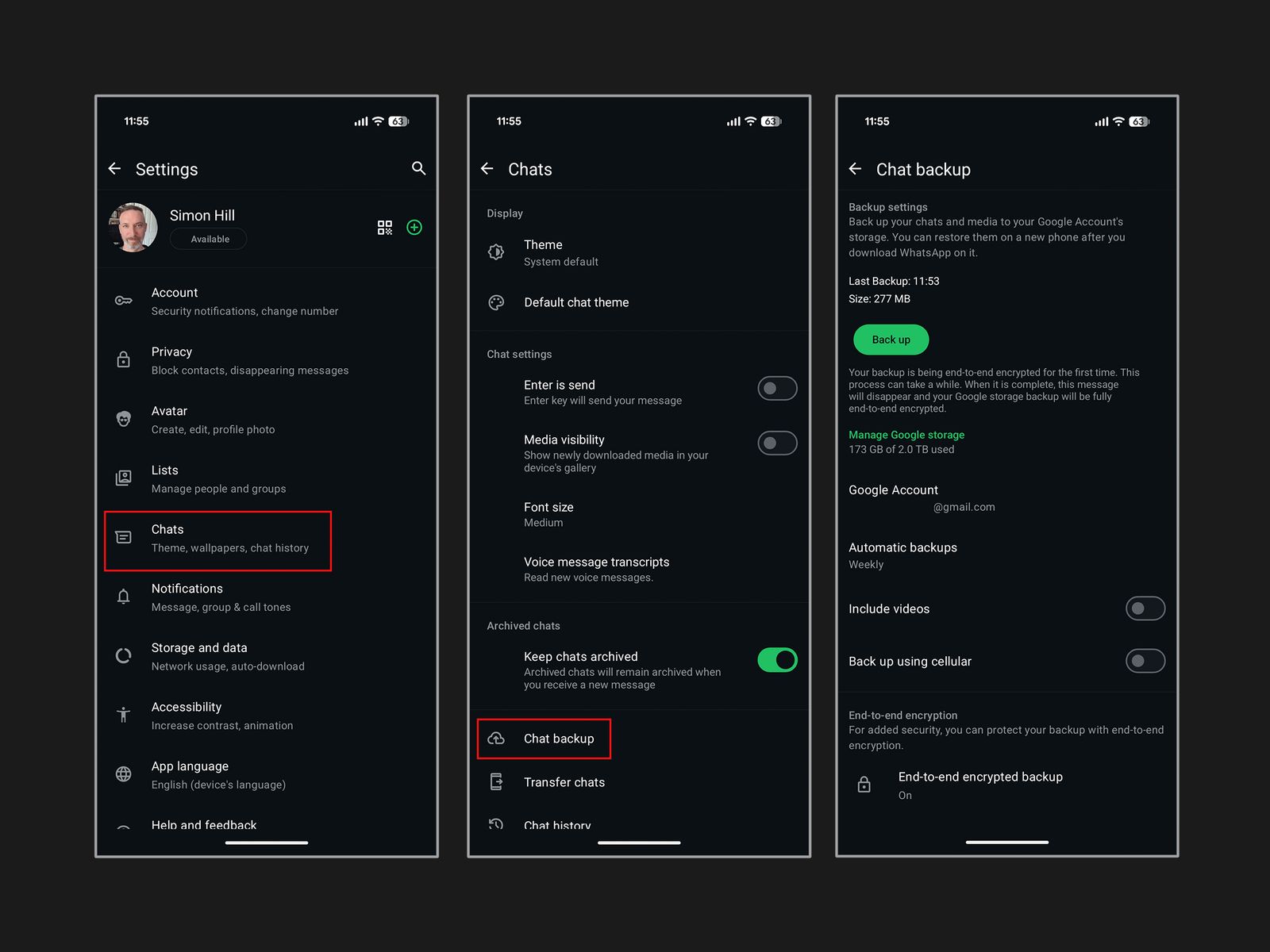
WhatsApp via Simon Hill
Read the full article here