

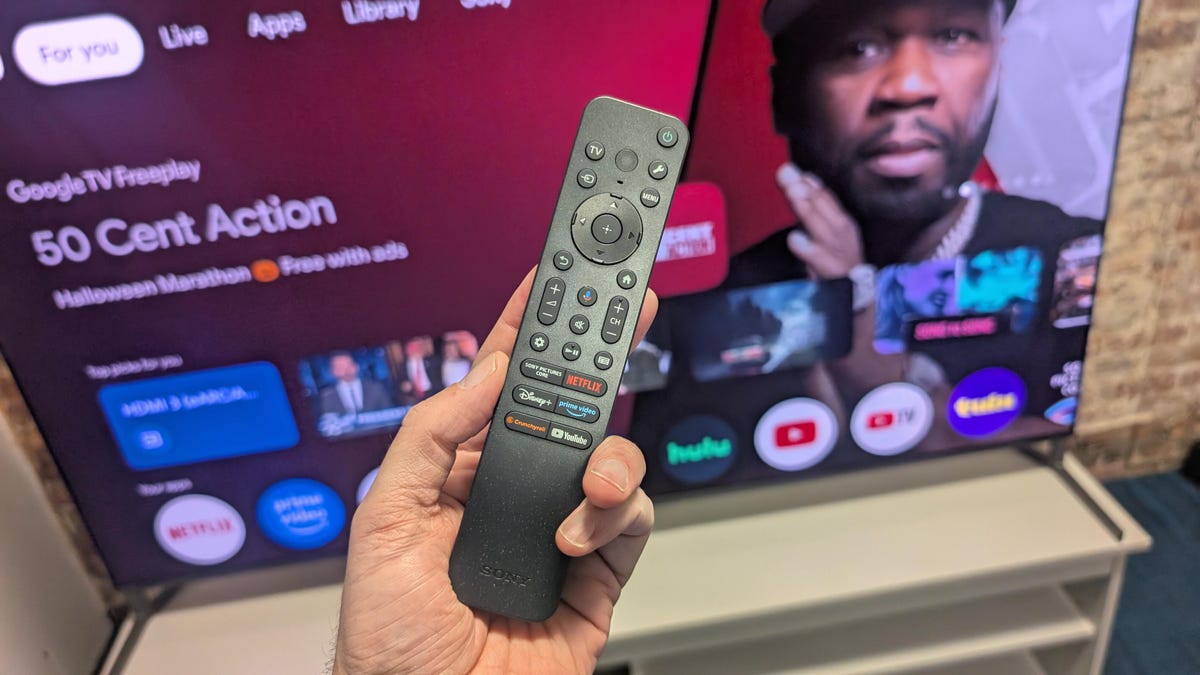
Sony is widely considered to make some of the best TVs you can buy, primarily due to its incredible picture processing capabilities. But even with all of that processing power and pedigree, if you stick with your new TVs’ out-of-the-box picture setup, you’re missing out on that top Sony performance.
You don’t need to spend hundreds of extra dollars to get a really excellent picture — you just need to make a few key changes. And we’re here to tell you what they are. Be aware that some of the settings may not be relevant to your TV, depending on its age. Also, while Sony’s TVs may change once the company’s joint venture with TCL gets going, this shouldn’t affect current models from either brand.
Don’t miss any of our unbiased tech content and lab-based reviews. Add CNET as a preferred Google source.
Also read: Best TVs of 2025
Turn off Eco settings
- Turn off Power Saving
- Eco settings can drastically limit brightness output
To meet energy consumption targets, most TVs come with their Eco settings enabled, and Sony TVs are no different. And as nice as it is to conserve energy, Eco settings invariably degrade picture quality, particularly brightness, making your new Sony TV look nowhere near its best. It’s like adding a 55 mph speed limiter to a Ferrari.
Navigate to the Power & Energy menu in the TV’s Google OS System menu: All Settings>System>Power & Energy. Select Energy Saver and toggle the Power Saving option to Off. As you can read in the submenu’s description, Power Saving will “Adjust the brightness and panel control to reduce the TV’s power consumption,” which means the TV will never reach max brightness. Any setting that completely takes control out of your hands has the potential to adjust the picture in undesirable ways — at least when it comes to accuracy. Which brings us to…
Turn off Ambient Optimization Pro
- Disable Ambient Optimization Pro
Newer TVs — Sony or otherwise — come with an ambient light sensor built in. The purpose is to read what the ambient light brightness and color temperature are in the room, and dynamically change the picture on the screen. On a Sony, this feature is called Ambient Optimization Pro, and while some people may like it, it compromises your TV’s accuracy and takes its performance into its own hands. Open Settings, click Display and Sound, scroll down to Ambient Optimization Pro, and turn off Auto-adjust according to ambient light.
See also: Instantly Improve Your TV’s Picture by Changing These Simple Settings
Select an accurate picture mode in SDR and HDR
- Switch Picture mode to Professional or Cinema
- Make sure to check with both SDR and HDR signals
Now that the automation settings won’t get in the way, it’s time to select your picture mode for different types of content. For the most accurate picture, be sure to select Professional (which used to be called Custom up until a couple years ago) which removes a lot of extra processing. Picture mode Cinema is very close to Professional and also a good choice, but is tuned more towards movie watching in a darker room and still includes some processing.
Sony has also partnered with various services to offer calibrated modes for those services. These include Netflix Calibrated, Prime Calibrated for Amazon Prime Video, and Sony Pictures Core Calibrated. IMAX Enhanced is another that is intended for IMAX Enhanced content found through Disney+. These can offer a great experience on those specific services and are worth trying out, but I’d still recommend staying with Professional mode for the most part, as these specialized modes can still include options mentioned above by default — such as ambient light adjustment.
Also, make sure to add some HDR content, both HDR10 and Dolby Vision, so the TV selects the proper picture mode when it senses that content. For HDR10, I recommend the same mode as SDR — Professional or Cinema. Dolby Vision can be either Dolby Vision Dark or Dolby Vision Bright. Both offer excellent picture accuracy, so choose based on the brightness needed in your space.
If you’re setting up your Game picture mode for the lowest input lag during gaming, make sure to change the Color Temperature to Expert 1 for best accuracy.
Adjust the TV’s brightness for your room
A lot of focus over the past few years has been put on the brightness output of TVs as brands battle to create the brightest TV ever. And while the ability for more brightness is always a welcome improvement — brighter images paired with inky black levels create incredible contrast — having a TV’s brightness maxed out isn’t always the best for every situation. A room with lots of ambient light needs a brighter TV, so in that case, I’d turn up the brightness slider to the max. But if you’re looking for SDR reference quality in a dark room, the light output should measure 100 nits, which requires the brightness slider to be down towards the lowest setting. Most modern TVs are much brighter than this in SDR mode, and this setting is a matter of preference. You can easily skip this step if you like.
“If brightness should be different based on the ambient light in a room,” I hear you ask, “then why not use the Ambient Optimization Pro that we turned off earlier?” That setting dynamically adjusts brightness and color temperature, which can be distracting and lead to inaccuracies. By keeping that off and changing the brightness yourself, it keeps the performance static and consistent.
A nice included bit of text in Sony’s menu settings provides clarification when you’re adjusting the SDR or HDR mode. Settings like Brightness, Contrast, and Gamma will include either (SDR) or (HDR). For someone who likes to tweak settings, it’s a nice quality-of-life inclusion that other companies would do well to adopt.
In addition to the Brightness setting, further down in the Picture settings menu is Peak Luminance, which adjusts the TV’s local dimming. This can be set to Off, Low, Medium, or High to adjust the maximum light output and affect blooming performance. Newer Sony TVs generally have good bloom limitation, so I’d recommend keeping Peak Luminance set at High for the most dramatic HDR performance.
Check your HDMI settings for external device connections
A lot of people assume that if you connect an HDMI 2.1 device to an HDMI 2.1 port on a TV that you’re done and dusted. But that might not necessarily be the case. All televisions have the ability to change the HDMI signal format for compatibility with older devices. Often TVs ship with the HDMI ports set to the most compatible setting — HDMI 1.4 — so customer service lines don’t have to deal with calls from new customers complaining their old soundbar isn’t working properly with their new TV. The flip side is that your game console, for example, might not be sending a 120Hz signal to your TV because the HDMI port isn’t set up for it.
If you open the External Inputs (All Settings>Channels and Inputs>External inputs)Menu, there’s an HDMI signal format submenu that allows you to adjust this setting for each individual HDMI port. Generally, there are two settings: Standard format (the HDMI 1.4 setting) and Enhanced format (for HDMI 2.0), with Enhanced being the one you want, as it enables 4K/60Hz signals on that input. Some HDMI inputs might include a third option — depending on the year and model, it could show as either Enhanced format (Advanced) or Enhanced format (4K120). This will (surprise, surprise) allow that port to accept signals from a gaming console or PC at 4K resolution with 120Hz refresh rate. If you are setting up an input for gaming, also make sure to turn on VRR.
There are some additional settings you can adjust to your personal taste, such as Motionflow (Sony’s motion interpolation) and CineMotion (for judder). Sony’s Reality Creation is also an excellent feature to use for upscaling lower-resolution content. But as long as you check and adjust the five settings listed above, your Sony television will impress and dazzle for many years to come.
Read the full article here