

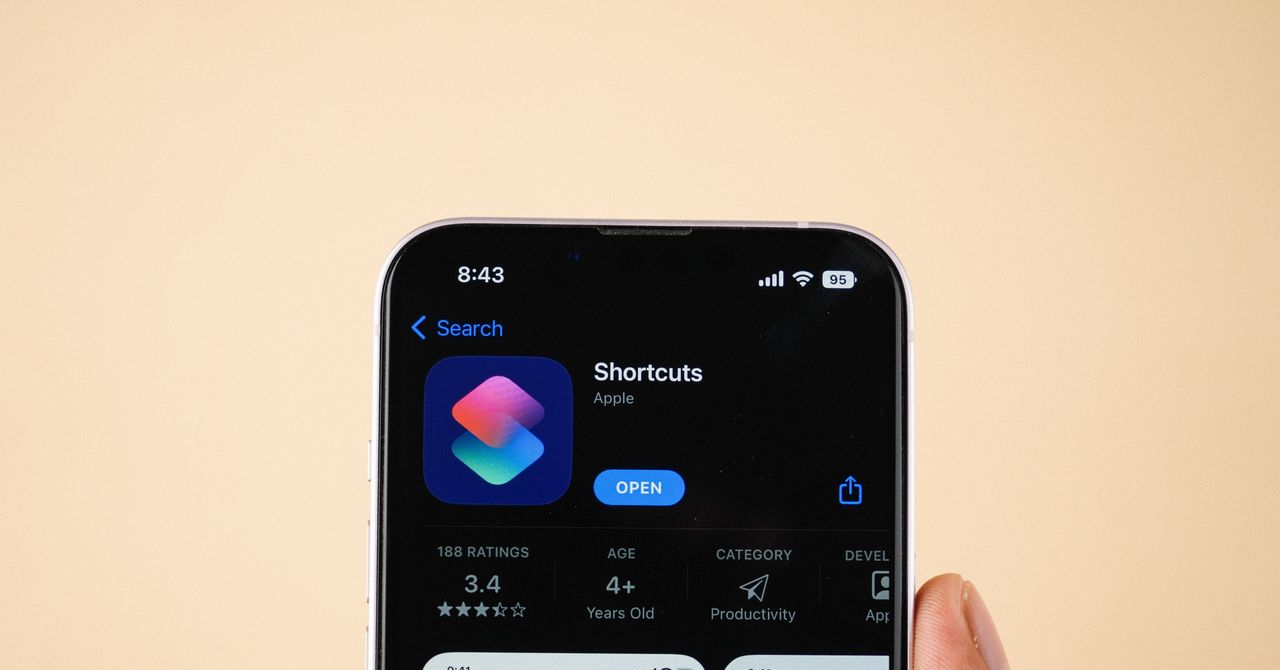
I’ve never used Apple’s built-in Shortcuts app before, despite owning an iPhone for years. While automating tedious tasks sounded nice, the necessary scripting to trigger actions and thread them together felt overwhelming when I first opened the app. But my experience with the iOS 27 beta has completely changed my perspective on Shortcuts. What was previously clunky and forgotten now feels streamlined and essential.
When iOS 27 lands this fall, Siri AI might be the most tangible change for many users, with its improved capabilities and stand-alone app. Even so, Apple Intelligence integration into the Shortcuts app has me humming “Zero to Hero” from Disney’s Hercules.
Called “Describe a Short,” it lets you say what you want it to do conversationally, then the app generates an automation flow. You can also tweak it by sending a follow-up prompt in the app; the manual scripting option remains available for power users. Since I was testing this app through the iOS 27 beta, I experienced a couple of glitches where the automations didn’t generate perfectly. Even so, this new Shortcuts feature was incredibly fun to tinker with. After a few tries, I generated automations that actually feel useful as part of my daily smartphone habits.
Photograph: Courtesy of Reece Rogers
Here are a few basic shortcut ideas worth trying once you download and install iOS 27. My examples only scratch the surface of what you can automate with the app, but hopefully it will spark ideas for your needs.
Habit Breaking
This might be the most basic automation I’ve set up, but it’s already my favorite. I spend so much time mindlessly scrolling on my phone that when I close social media apps, like Instagram, to focus on something else, I sometimes reopen them almost immediately out of habit.
I asked the app to generate a shortcut that triggers whenever I open Instagram. Now I get a notification asking: “Do you really want to use this app?” If I choose yes, then the pop-up goes away. But if I pick no, the phone automatically closes out of Instagram and locks the screen. It’s not exactly transformational, and there are other options for reducing screen time, but this little nudge feels helpful for breaking my repetitive habits.
Quality Checking
Since I live in California, I often check the air quality in my neighborhood on my way out of the apartment to gauge whether I should pack a mask. Rather than manually checking the air quality index each day, I wanted to automate the process. So, I set up a shortcut that runs every morning at 6:40 am. It checks the current weather, looks at the air quality index, and then sends me a notification. If the air quality index is above a certain threshold, I get an alert; if it’s below, it sends me the all-clear.

Photograph: Courtesy of Reece Rogers
Battery Saving
Shortcuts can also be triggered based on your location. Whenever I leave my apartment, no matter the time of day, I want my phone to be charged, or I have to grab a battery pack just to be safe. To help with this, I generated a shortcut that triggers when I leave home and checks my device’s current battery level. If it’s below 50 percent when it runs, I get a friendly notification that reminds me to bring that power bank. (A quick trip back inside to grab it is better than being miles from home with no way to communicate.)
Plant Watering
These next two automations are a good example of how you can build shortcuts on your home screen and tie shortcuts together. While plenty of apps log plant watering, I wanted to see if Shortcuts could do it for me. First, I created a shortcut that, whenever I run it, grabs the current date and time and adds that to a dedicated plant watering note to keep a consistent log. I then tapped on the drop-down menu at the top of the app and clicked Add to Home Screen. Now, each time I do the chore, I can tap that app icon to log it.
That alone could have been helpful, but I wanted to push the automation a little further. I created another shortcut that, every morning at 9:00 am, finds the plant watering log and sees if it was modified within the last week. If no changes have been added within the last week, it sends me a notification reminder to check on the plants.
Screenshot Extracting
Although this automation is a little more niche, I use it fairly often as someone who’s chronically online and often taking screenshots. Now, whenever I take a screenshot, my phone automatically extracts any text in the images and copies it to my clipboard. This simplifies my previous process of saving screenshots, manually opening the Photos app, then copying the text from the images.
Plane Landing
This one isn’t very complicated, but it makes my life just a little bit easier. I often travel without my partner and can be negligent in sending updates. So I asked the Shortcuts app to generate an automation that sends a “just landed” text to my partner every time I turn off airplane mode. Simple. During setup, the app asked me to select which iPhone contact was my partner. It’s an easy automation that solves the issue of me being incredibly distracted when deplaning.
Sound Recognizing
While this shortcut requires you to adjust your accessibility settings, the extra hassle seems worth it for the payoff. I’m almost always wearing headphones when working from home, with the music turned up quite loud. I’m also anxious about not hearing someone knocking on my door or ringing the bell. There’s a fix! Start by going into your Accessibility settings, then find Sound & Name Recognition. Here you can enable sound recognition for everything from glass breaking to babies crying; I picked Door Bell and Door Knock.
Since I don’t always have my phone on me while wearing headphones, the basic notification wouldn’t be that helpful. So I beefed it up by building a shortcut so that when my iPhone recognizes either sound, it pauses whatever is playing. Now I can blast my podcasts without worrying about missing a package delivery.
Read the full article here