

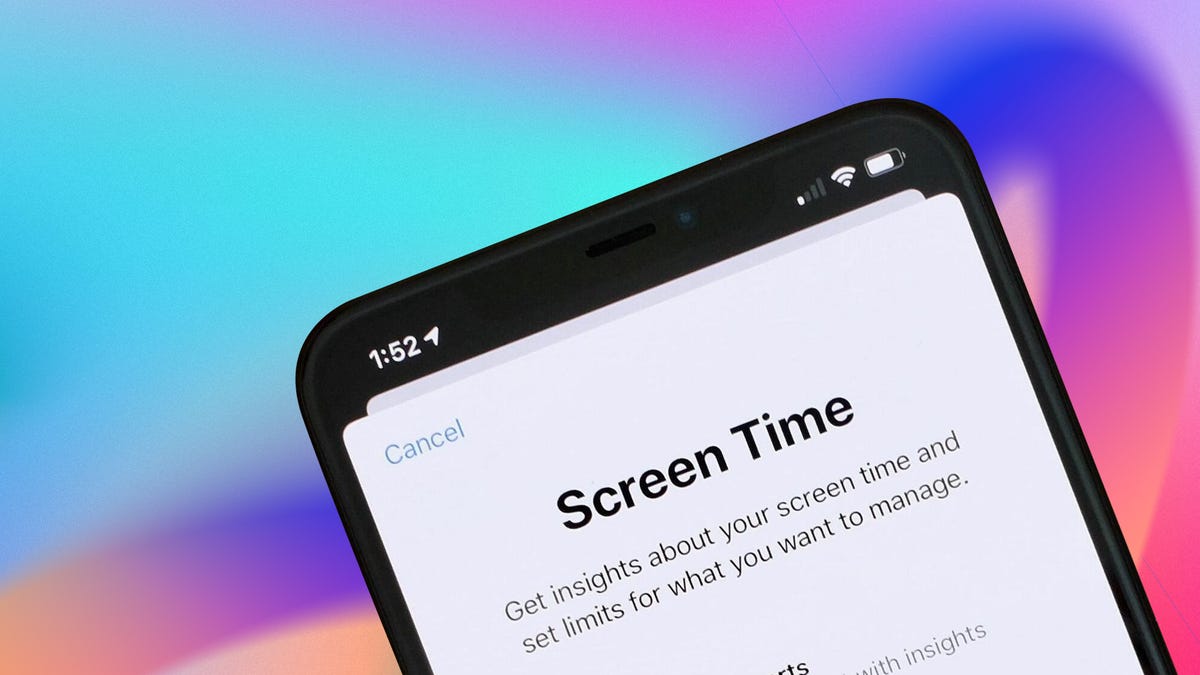
Most people are aware, somewhere in the back of their minds, that they’re spending too much time on their phones. The average person now unlocks their device more than 150 times a day, and what starts as a quick check of the weather or a single news headline can turn into 45 minutes of scrolling with nothing to show for it. The irony is that the same device fueling the habit also comes loaded with tools designed to help you break it, and most people have never turned any of them on.
Breaking the cycle doesn’t mean giving up your devices entirely, but it does require setting firmer boundaries. By using built-in wellness tools on your phone and laptop, you can cap your daily usage and reclaim your focus. Taking control of your screen time is the simplest way to protect your health and stop the digital world from draining your energy.
If you want to limit your screen time or stop doomscrolling, both Apple and Google have digital well-being features to help you disconnect. Newer generations of software, iOS 26 and Android 16, have added even more features that can help you put down your phone.
We’ll walk through how to take advantage of the digital wellness settings on Apple and Android devices, including how to set up app timers, downtime and bedtime mode. For more, check out these essential iPhone and iPad parental controls.
Don’t miss any of CNET’s unbiased tech content and lab-based reviews. Add CNET as a preferred Google source.
Set up app timers on iPhone, iPad and Mac
You can set up app timers on your iPhone, iPad and Mac. By adding a timer to apps in your settings, you’re giving yourself an allotted amount of time on each app — once time is up, Apple will stop your scroll and alert you that it’s time to log off.
Before you begin, it’s important that you have screen time notifications allowed. Check this setting under Settings > Notifications > Screen Time and ensure you have enabled Allow Notifications and Time Sensitive Notifications.
Here’s how to create time limits for your apps on your iPhone, iPad and Mac:
- Open your iPhone, iPad or Mac’s Settings and tap Screen Time.
- Tap App Limits.
- Tap Add Limit.
- Select the individual or categories of apps you want to set timers for.
- Tap Next in the upper-right corner.
- Scroll and set the amount of time you want to allow yourself on each app.
- Tap Customize Days if you want to customize your limit’s schedule.
- Tap Add in the upper right corner.
Once you’re approaching your set time limit, Apple will send you a notification when you’ve got 5 minutes remaining. After you hit your limit, the app stops whatever it’s doing and presents you with a new screen that prompts you to tap OK to exit the app. If you’re doing something particularly urgent, you can tap Ignore Limit below. After you’ve hit your limit for the day, the app will appear grayed out on your home screen with an empty timer next to it.
Read more: This App Blocks Your Social Media Until You (Literally) Touch Grass
Set up downtime on iPhone, iPad and Mac
Another way to limit your screen time on Apple devices is to schedule downtime. Downtime is just what it sounds like — time to put down your device and do something else. This setting will alert you once your chosen rest period begins.
Here’s how to set up downtime:
- Open your iPhone, iPad or Mac’s Settings and tap Screen Time.
- Tap Downtime.
- Toggle on the widget next to Scheduled.
- Set your downtime schedule.
Set up app timers on Android phones and computers
If you have a Google Pixel, Samsung Galaxy or another Android smartphone, you can set up time limits for each app as well. These settings give you the same options as Apple to set an allotment of time you can spend on each app. Here’s how to set them up.
- Open your Android’s Settings.
- Tap Digital wellbeing and parental controls.
- Tap the screen time graph.
- Find the app you want to set a limit for.
- Tap the hourglass icon next to the app you want to set a limit for.
- Set the amount of time you want to give yourself on each app.
- Tap OK.
App timers on Android phones reset each day at midnight.
Read more: Looking Down at Your Phone is Distressing Your Neck. Here’s How to Correct Tech Neck
Set up bedtime mode on Android phones, tablets and Chromebooks
You can also limit your screen time by establishing a bedtime routine for your Android. This will alert you when it’s time to put your device down for the night according to your schedule. Here’s how to do this.
- Open your Android’s Settings.
- Tap Digital well-being and parental controls.
- Tap Bedtime mode.
- Tap Bedtime routine.
- Choose whether to set a custom schedule or pick Turn on while charging, then select your desired time frame.
For more about digital well-being, check out one expert’s reasons to consider a social media detox and CNET’s picks for the best apps to help manage your screen time.
Read the full article here