

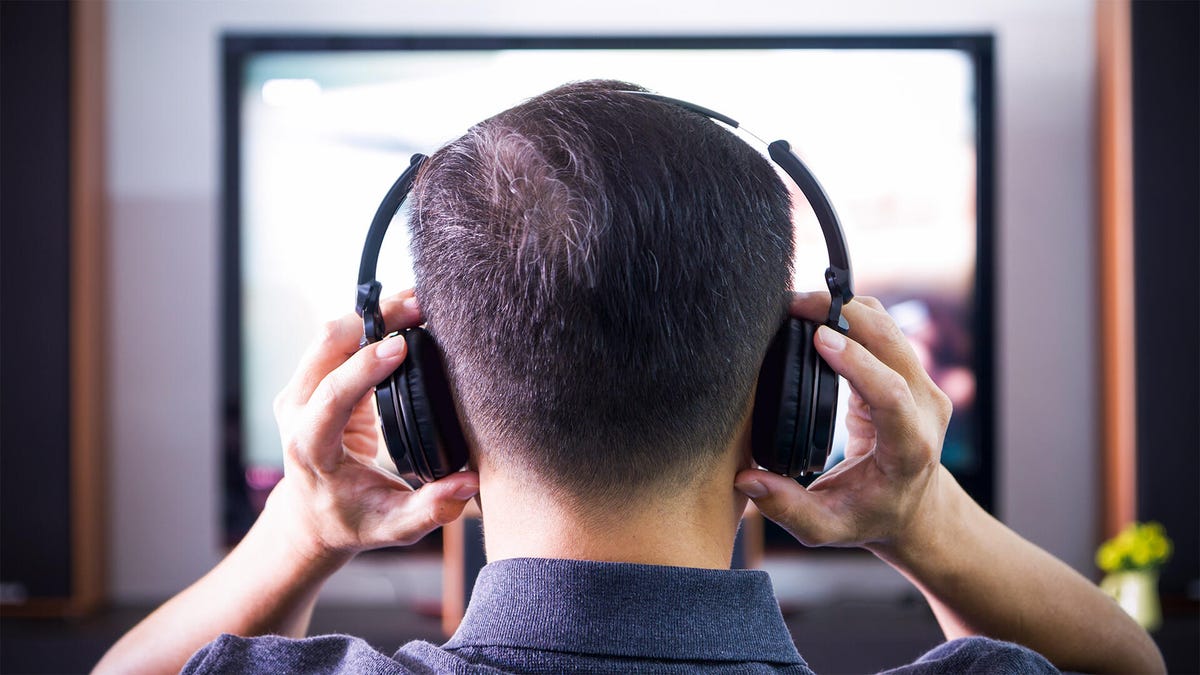
Whether you’re a parent, a roommate, a spouse or all of the above, you’ve probably given up watching TV at some point to avoid disturbing the people around you. The good news? You don’t have to retreat to a tiny phone or tablet to catch your favorite shows and movies. You can still watch on your big TV without bothering anyone else.
Bluetooth is the key, and it’s everywhere, including the best TVs. Connecting your wireless headphones or earbuds to your TV is usually quick and easy. Here’s how to do it, what you can do with it and what to do if you encounter issues.
Initial prep
First, update the firmware on both your TV and your headphones/earbuds (you’ll do this via the companion app for your headphones on your phone). Next, put your headphones into pairing mode. If needed, check the manual for specific instructions, but it usually involves pressing and holding a button on the headphones or earbud case until a light starts flashing.
Connect
Go to your TV’s settings menu, usually represented by a gear icon. Locate the Bluetooth menu, which may be accessible separately or within the sound/audio output options, depending on your TV model.
Once you’re in the Bluetooth settings, select Add device (or the closest equivalent). Your headphones/earbuds should appear there. Select them, and the TV should indicate that the headphones are now connected.
If your TV’s Bluetooth settings are separate from the audio output settings, you’ll need to change the audio output to Bluetooth as well. You should also hear a brief connection tone from the headphones.
Once a set of headphones is paired with your TV, you generally just need to put them on, and they should automatically reconnect to the TV. Some TV models may require you to revisit the settings and manually select Bluetooth as the sound output. Some TVs support audio output through both Bluetooth and the built-in speakers simultaneously, which can be handy if you’re watching with multiple people and one of them likes the volume cranked way up.
Multipoint and dual audio
If your headphones support multipoint Bluetooth, you should be able to switch from your TV audio to a phone call without having to manually switch and reconnect devices.
If your TV supports dual audio, you can connect to two headsets and watch/listen together without waking the kids. Pair the second device you’d like to connect using the same procedure above, and then go to the audio output settings. You should be able to choose multiple devices for simultaneous synced output.
Troubleshooting Bluetooth and TV connections
Some HDMI connections to devices like soundbars can hog up the audio output and prevent you from switching to Bluetooth. For example, I encountered a specific combination of devices — an LG OLED TV and a Sonos Arc soundbar — where I selected Bluetooth, and the HDMI connection took over the audio within a couple of seconds. If this happens, you can try unplugging the soundbar cable.
If an issue or problem comes up, such as a Bluetooth connection error message, return to your TV’s Bluetooth settings, select the device and choose either Forget device or Delete device. Then repeat the pairing process.
If your TV doesn’t have Bluetooth, you’re not left out in the cold. Bluetooth transmitters are easy to connect to older TVs with an audio output (typically an optical connection) and usually support two headphone connections simultaneously. However, be sure to look for a transmitter model that includes the aptX low-latency codec and use it with headphones that also support the same codec. If not, you may experience distracting lag time between audio and video, aka lip-sync issues.
To pair the transmitter with your headphones, place both devices in pairing mode, and they should connect automatically. If another device hijacks the connection to your headphones, turn off that device’s Bluetooth.
Read the full article here