

It seems like we’ve been living with smartphones forever by now. Even though it’s only been a couple of decades, we’ve all probably cycled through at least one or two old phones that are still sitting in a drawer, doing nothing but collect dust.
Let’s put those decommissioned smartphones back to work. You can actually turn your old iPhone or Android phone into a remarkably effective security camera for free. I’m serious.
With a simple app, you can get a live feed to keep an eye on your front porch, your pets or whatever else you’re paranoid about, all without spending a penny. It’s the ultimate old tech hack.
All you really need is a good location and a nearby power source. In just a few minutes, that “useless” device has a purpose again. Here is exactly how to transform your junk drawer inhabitant into a high-tech sentry for your home.
Step 1: Install a security camera app on your old smartphone
To begin, you will need to choose a security camera app. Most apps offer many of the same features, such as local streaming, cloud streaming, recording and storing footage locally or remotely, and motion detection and alerts. Once you’re set up, you will be able to monitor your living space and control your security camera from anywhere, straight from your new phone.
One of the best apps for setting up your phone as a security camera is Alfred. It’s cross-platform, so it doesn’t matter if your old phone was an Android phone or an iPhone. The same goes for your new phone.
Alfred is free to use and gives you a remote view of your live feed, motion detection with alerts, free cloud storage, a two-way audio feed and use of both the front and rear cameras. To unlock additional features, like higher-resolution viewing and recording, zoom capabilities, ad removal and 30-day cloud storage, you can upgrade to Alfred Premium.
1. Download Alfred (Android, iOS) on both your old and new phones. You don’t have to use a phone as a monitoring tool — you can also download Alfred to your tablet or PC if you prefer to keep watch from there. Just make sure the app is on both devices.
2. On the new phone, swipe through the introduction and tap Start. Select Viewer and tap Next.
3. Once you get to the sign-in page, click Sign in with Google (a Google account is required) and sign in with your Google account credentials.
4. On the old phone, repeat the same steps, but instead of selecting Viewer, select Camera. Be sure to sign in to the same Google account.
Once both phones are signed in to Alfred, you’re pretty much done with the setup. Alfred has simplified the camera options to include only a few settings. On iOS, you can only enable motion detection, choose between the front and rear cameras, and enable or disable audio. If you’re using an Android device, you have those options and can also enable continuous focus, have Alfred automatically reopen if the phone reboots, set a resolution and enable a passcode lock.
From your new phone, you can change a few more settings, such as turning notifications on or off, setting a camera or viewer name, adding other people to your Trust Circle (granting other people access to your video feeds), removing a camera, checking how many times a camera has disconnected, setting motion detection sensitivity and enabling a low-light filter on cameras.
If Alfred isn’t really doing it for you, you can explore other cam app options. Other apps that can give your old phone a security cam upgrade include:
- Faceter: Faceter is a surveillance app that offers quick setup and cloud storage for Apple and Android phones.
- Epoccam: EpocCam is a very speedy cam app that’s made for content creators but can serve a wide variety of purposes. It’s currently made only for iPhones.
- iVCam from E2ESoft: iVCam is a more open-source cam solution that’s best for those who really want to tinker with camera settings and customize them, although like EpocCam it’s focused a bit more on webcam-related activities than security.
Step 2: Pick a spot for your new smartphone security camera
After you have the stream up and running, you will need to set up and position the camera. You may want it focused on the main entry point to your home, your backyard, the place where you store valuables or a point you think might be particularly vulnerable. If you have multiple old phones, you can set up multiple cameras for fairly robust video coverage.
Step 3: Mount and power your security camera smartphone
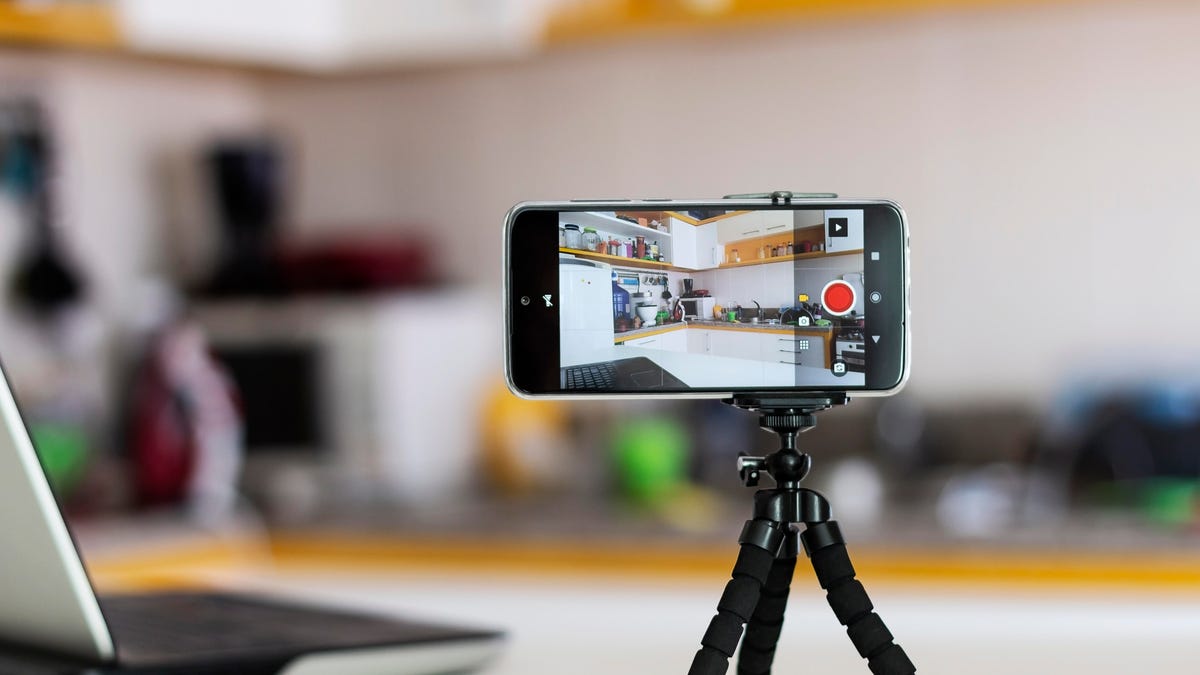
To mount or position the camera, a small smartphone tripod or suction-cup car mount can work wonders and help you position the camera in an inconspicuous place. To broaden the field of view, consider buying a wide-angle lens for your phone, something that can be purchased for between $5 and $20 online.
Streaming video is very power-intensive, and the phone will be on 24/7. To keep the phone from dying in the first few hours, you’ll need to position it close to a power source. A 10-foot Micro-USB, Lightning cable or USB-C cable and spare phone charger will give you more flexibility in where you can put it.
And that’s it: Now you can use the security cam app on your new phone to view the feed from your old phone’s camera, and you’ve made your home more secure without spending much at all.
Note: When choosing your mounting location, be sure to avoid furnace vents and other heat sources, such as in a window that gets full sun all day. Heat sources can damage your camera’s lenses and battery over time, especially when combined with the heat of a power-hungry task like livestreaming.
Final note: Old smartphones and security concerns
Smartphones will eventually age out of security updates, which means they can eventually become vulnerable to attacks. If your old phone is still online — like when you’re using it as a security camera — that’s a problem.
First, we recommend wiping any personal data off the phone before you transform it into a camera. Second, automate your updates when possible. Third, consider giving the phone a final use-by date, after which you’ll recycle it. These days, companies try to push security updates for five to seven years after release (with some going even longer in recent years). We have a full guide on the security of older phones if you’d like to learn more.
Finally, if we’ve got you excited about using your smartphone for home security purposes, don’t forget that you can also download an app like Hidden Camera Detector to automatically search for telltale signs that there’s a cam watching in the room. Airbnb may have outlawed indoor security cameras, but we don’t blame you if you still want to check when you’re traveling.
For more, check out the best DIY home security systems.
Read the full article here