
Close Menu
Modern Life Today
  • Home
  • Tech
  • Smart Home
  • Energy
  • Home Security
  • Kitchen & Household
  • Outdoor
  • Home Internet
Trending Now

Expert Advice: Follow These 4 Rules for Perfect Espresso Every Time

January 29, 2026

The Best Open Earbuds for Everyone

January 29, 2026

Best Family Phone Plans for 2026

January 29, 2026
Facebook X (Twitter) Instagram
Modern Life Today
  • Home
  • Tech
  • Smart Home
  • Energy
  • Home Security
  • Kitchen & Household
  • Outdoor
  • Home Internet
Subscribe
Modern Life Today
Home»Smart Home»Don’t Love Your iPhone’s Liquid Glass? This Setting Can Change It
Smart Home

Don’t Love Your iPhone’s Liquid Glass? This Setting Can Change It

Press RoomBy Press RoomJanuary 11, 2026No Comments2 Mins Read
Share Facebook Twitter Pinterest Copy Link LinkedIn Tumblr Email

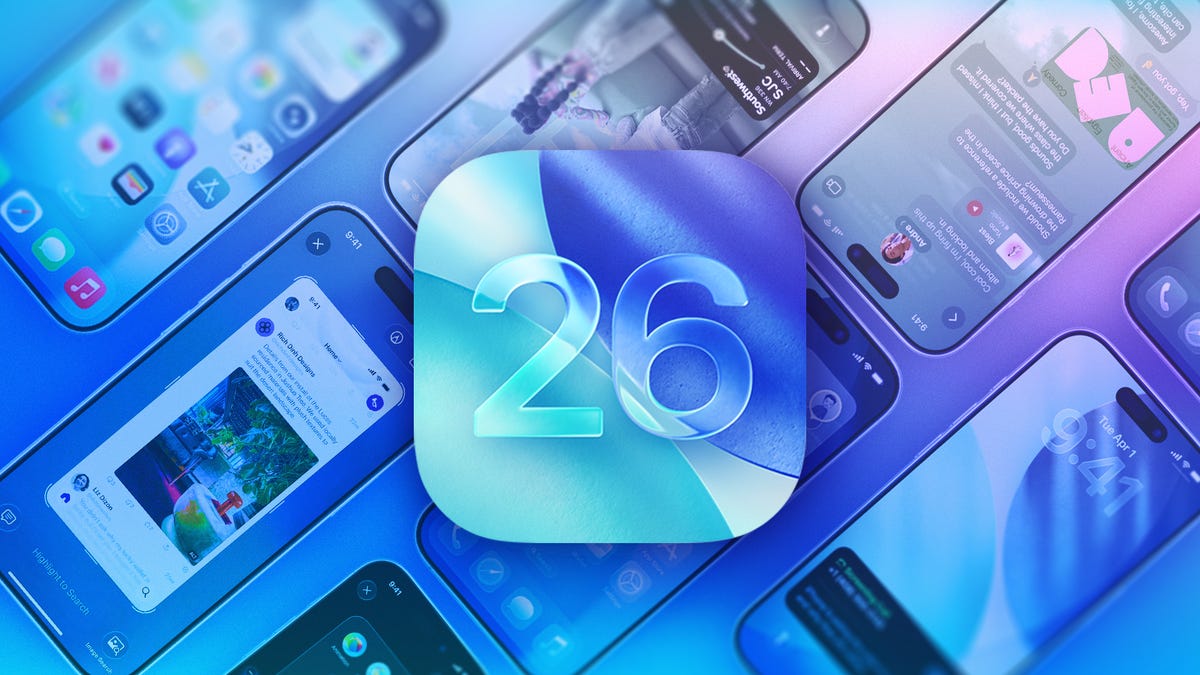
When Apple released iOS 26.1 in November, one of the biggest changes it brought to your iPhone was a way to adjust certain Liquid Glass elements across your device. This new setting could help resolve readability issues some folks on Reddit noted, so if you’ve had trouble reading things on your device, you should download iOS 26.1 and give this setting a shot.

Apple introduced Liquid Glass in September alongside iOS 26. It’s the first major visual change on iPhone since iOS 7 in 2013. Before iOS 26.1, there were only a few ways to change Liquid Glass elements on your iPhone. You could add a dark tint to home screen elements or adjust the Reduce Transparency setting to alter how Liquid Glass looks across your device. The new setting allows you to modify specific elements on your iPhone, such as your Notification Center and certain search bars, without affecting other elements, like your home screen.

Here’s where to find the new setting if you’re running iOS 26.1 or later, along with my recommended setup.


Don’t miss any of our unbiased tech content and lab-based reviews. Add CNET as a preferred Google source.


Where to find Clear and Tinted Liquid Glass options

1. Tap Settings.
2. Tap Display & Brightness.
3. Tap Liquid Glass.

In the Liquid Glass menu, you’ll see two options: Clear and Tinted. Clear is the default setting and Tinted makes the Liquid Glass elements less transparent.

“Clear is more transparent, revealing the content beneath,” Apple writes for the setting. “Tinted increases opacity and adds more contrast.”

Tinted doesn’t totally eliminate Liquid Glass elements in menus, but it does minimize the design’s effects. Once Tinted is enabled, some elements and menus almost appear opaque, like the search bar in Messages, until you scroll over something colorful or bold.

These Liquid Glass settings also won’t change your iPhone’s Light or Dark display settings. You can enable Tinted and be in Light mode or enable Clear in Dark mode. But Dark mode with the Tinted setting looks clean to me and is my personal preference.

For more iOS news, here’s what to know about iOS 26.2 and what was included in iOS 26.1. You can also check out our iOS 26 cheat sheet for other tips and tricks.


Read the full article here

Share. Facebook Twitter Pinterest LinkedIn Tumblr Email

Related Articles

Belkin Is Ending Support for Wemo Smart Home Devices. Here’s What That Means for You

January 27, 2026

I Got Charmed by This Smart Candle Warmer and Its Safe, Cozy Scents

January 25, 2026

Who Needs Wires and Batteries? Smart Home Devices Are Making Their Own Power Now

January 22, 2026
Add A Comment
Leave A Reply Cancel Reply

Demo
Top Articles

The 8 Best Blenders for Smoothies, Soups, and Sauces

January 14, 2026

All the Pet Tech That Stood Out at CES 2026

January 8, 2026

Premier League Soccer: Stream Bournemouth vs. Tottenham Live

January 7, 2026

Why Our LED Bulbs Burn Out So Fast at Home and How You Can Stop It

January 20, 2026
Don't Miss

AirTag 2 vs. AirTag 1: Comparing Apple’s Upgraded Tracker

By Press RoomJanuary 29, 20260

When Apple upgrades its hardware, the differences are usually stark: things like better iPhone cameras,…

6 Best Tech Buys to Help During Blackouts, Brownouts and Power Outages

January 29, 2026

The Best Coffee Makers of 2026

January 29, 2026

I’ve Seen It With My Own Eyes: The Robots Are Here and Walking Among Us

January 29, 2026
About Us
About Us

Modern Life Today is your one-stop website for the latest gadget and technology news and updates, follow us now for the news that matters to you.

Facebook X (Twitter) Pinterest YouTube
Featured News

The 10 Black Friday Deals You Absolutely Have to Grab, According to CNET Readers

November 29, 2025

Black Friday Is Over, but Great Vacuum Deals Remain. Get Your Home Sparkling Without Overspending

November 29, 2025

Your Study Setup Deserves Better, and These E‑Ink Black Friday Deals Deliver

November 29, 2025
Trending Now

The 70 Best Black Friday Outdoor Deals (2025)

November 29, 2025

La Liga Soccer: Stream Barcelona vs. Alavés Live From Anywhere

November 29, 2025

T-Mobile’s Black Friday Weekend Sale Offers Up to $1,000 Off Before Cyber Monday Hits

November 29, 2025
  • Home
  • Privacy Policy
  • Terms of use
  • For Advertisers
  • Contact
2026 © Prices.com LLC. All Rights Reserved.

Type above and press Enter to search. Press Esc to cancel.