

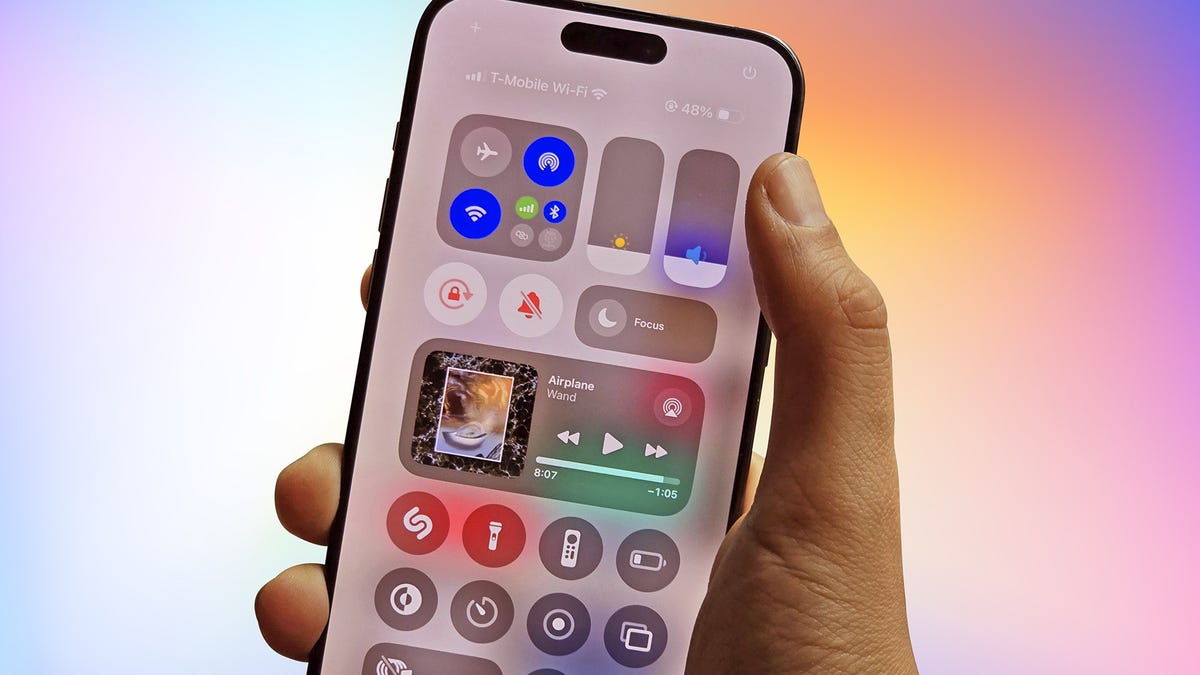
Phones are getting too big to use one-handed, and that’s not likely to change anytime soon. Even the smallest phones these days have screens bigger than 6 inches. If you’ve got a bag of groceries or a dog leash in one hand, and you need to send a text message with the other, you might run into some issues — especially if you’re using an iPhone 17 Pro Max or Galaxy S25 Ultra.
For me, one of the most annoying quirks about upgrading from a 5.4-inch iPhone 12 Mini to a 6.1-inch iPhone 16 was how difficult it is to access the Control Center. This is the iOS feature that lets me change my screen brightness, toggle Airplane Mode, use the Flashlight and lock my screen rotation, among countless other functions.
If your iPhone still has the Home Button, you can open the Control Center simply by swiping up from the bottom of the screen. But on newer iPhones with a notch or Dynamic Island, you have to swipe down from the top right corner.
In theory, it should be easy. In practice, it can require some elaborate finger gymnastics, especially on a screen that’s pushing 7 inches.
If I move my finger too far to the left, I’ll get the Notification Center instead of the Control Center. And if I only have one hand free to use my phone, it can be almost impossible to stretch out my thumb and reach for that corner (oh, how I wish Apple would bring back the iPhone Mini).
However, I’ve learned a few tricks that let me access the Control Center more easily.
Use the Reachability feature
The simplest way to reach the top of your iPhone’s screen with one hand is by using the Reachability feature. It lets you pull down the entire top half of the screen.
All you have to do to enable Reachability is swipe down on the bottom edge of your screen: This will bring the top right corner of your screen within thumb’s reach, letting you open the Control Center without adjusting your grip on your phone.
If you aren’t able to use Reachability on your iPhone, here’s how you can turn on the feature. Go to Settings > Accessibility > Touch. Then toggle on Reachability.
While Reachability is helpful, it’s not always the most intuitive to use. It can also limit your access to the lower half of your screen temporarily. If your goal is to just open the Control Center, you do have some other options.
Turn on Back Tap
Did you know that the back of your iPhone is technically a button? Back Tap is one of the device’s most useful hidden features, allowing you to access a wide range of functions without touching the screen. It works even if you use your iPhone with a case. And it easily lets you open the Control Center while using your device with one hand.
To enable Back Tap to open Control Center, go to Settings > Accessibility > Touch > Back Tap. From there, select Double Tap or Triple Tap, then select Control Center.
Once you’ve set up Back Tap, you can bring up the Control Center with one finger, simply by tapping two or three times on the back of your phone. You might have to practice doing it at the right speed, so that your phone correctly registers your taps. But once you’ve mastered Back Tap, you won’t have to even think about reaching for the top right corner of your screen again.
Create a Shortcut bookmark
You can also access the Control Center on your iPhone by creating a custom Shortcut bookmark. The bookmark is essentially an app that you can move to any spot on your home screen (which is even easier to do after iOS 18 added more options to rearrange your apps).
To create the Control Center bookmark, open the Shortcuts app and hit the plus (+) sign in the top right corner. Then, in the Search Actions finder, type Control Center and select the option Show Control Center. In the following drop-down menu, select Add to Home Screen. You’ll see options to customize the icon, or you can simply select Add to skip.
Now you have another way to open the Control Center without doing thumb stretches. One drawback to this method is that you can only access the Shortcut if you’re on your iPhone’s Home Screen, or whichever app page you’ve placed the bookmark. If you’re in the middle of watching a Netflix show, browsing on Safari or doing anything in another app, you’ll need to exit the app to get to this bookmark.
There’s still one more way to open your Control Center, and this method works no matter which app you’re using.
Use the Action Button
On the iPhone 15 Pro and iPhone 16 series, you can customize the Action Button to perform just about any function you can imagine. You can use it to run any Shortcut — including opening the Control Center.
To set your Action Button to trigger the Control Center, follow the same steps for creating a Shortcut bookmark. Then make one modification: Go to your Shortcut for the Control Center and change the action from Show to Toggle.
Next, go to Settings > Action Button and swipe to select the Shortcut option. In the menu, you’ll see a list of your available Shortcuts. Choose Control Center. Now you’ll be able to open and close your Control Center at any time with a quick press of the Action Button.
By default, the Action Button is your Silent/Ring switch, and you might miss having that function by changing it to this Shortcut. However, the Control Center is a much more versatile option for the Action Button. And you’ll still have easy access to the Silent/Ring switch by going to — where else? — the Control Center.
For more iPhone tips, learn about the iOS settings that can drain your battery, and check out 10 hidden features in iOS 18.2.
Read the full article here